> For the complete documentation index, see [llms.txt](https://ftcoders.first-tech.com/llms.txt). Markdown versions of documentation pages are available by appending `.md` to page URLs; this page is available as [Markdown](https://ftcoders.first-tech.com/first-tech-ttp-sdk/developer-zone/distinguishing-environments-staging-vs.-production.md).
# Distinguishing Environments: Staging vs. Production
Are you supporting an application being developed in a **staging (testing) or production environment**? This distinction is **crucial**, as each environment has **different characteristics** and requires **specific strategies**. It impacts everything from **how the application handles errors** to **how logs are generated and retrieved**.
* **Staging Environment:** Ideal for **testing**, with a **lower security level** to facilitate **log analysis**. Additionally, it **does not require synchronization with Google Play**, allowing the application to be **installed directly from any .apk (Android installation package)**.
* **Production Environment:** **Mission-critical**, enforcing **additional rules and restrictions** to ensure **security and stability**.
When troubleshooting application issues, the **first step is identifying which environment the issue should be addressed in**.
### First Tech SDK Library Dependencies Behavior
First Tech provides **two library dependencies** within the same repository. To integrate them correctly, it is essential to **properly configure the group, library name, and version** in the project's package manager.
This applies regardless of the programming language (e.g., in Java, this would be within the **`build.gradle`** file). Proper configuration ensures that the package manager references the **appropriate library**.
The **reference below** serves as a **useful tool for correctly setting up both environments**.
Environment: Testing/Staging
Group Organization: com.first-tech
Library Name: taponphone-sdk-v2-hml
Version: 1.0.0 (20) or higher
Device Integrity Check: ✅ Yes
App Store Verification: ❌ No\
\
Logs: Detailed via **Android Studio** with the device connected to a computer\
\
Transaction Behavior: Reads card data **but does not send the transaction for acquirer authorization**. Instead, it returns an **emulated receipt**. Customer identification parameters in the request are **not validated**.
Environment: Production/Release
Group Organization: com.first-tech
Library Name: taponphone-sdk-v2-release
Version: 1.0.0 (20) or higher
Device Integrity Check: ✅ Yes
App Store Verification: ✅ Yes\
\
Logs: Via **redactable logs** using `logcat`\
\
Transaction Behavior: Reads card data **and submits it for acquirer authorization**. **Deducts funds** from the account or **reduces the available credit limit**. Returns a **real transaction receipt**. Customer identification parameters are **validated during authorization**.
Next, **search for or request** the following strings in the **dependency management settings** within the code or in the **log files**, looking for something similar to the examples below:
#### Example Reference in the Testing/Staging Environment:
```
com.first-tech:taponphone-sdk-v2-hml
```
#### Example Reference in the Production/Release Environment:
```
com.first-tech:taponphone-sdk-v2-release
```
### How to Identify
There are **different ways** to identify **which environment** the application is running in:
#### Method 1: Check the Dependency Manager Configuration File
Verify the **dependency manager configuration file** used in the programming language chosen for implementation.
For example, if the customer is using **Java or Kotlin DSL**, simply open the **`build.gradle`** file and check the **notations** (directives responsible for locating and including library dependencies during the application build process).
Another example with Kotlin and Gradle Groovy DSL
```
dependencies {
hmlImplementation libs.taponphone.sdk.v2.hml
releaseImplementation libs.taponphone.sdk.v2.release
}
```
Another example using different approach:
```
dependencies {
add("hmlImplementation", libs.taponphone.sdk.v2.hml)
add("releaseImplementation", libs.taponphone.sdk.v2.release)
}
```
For other programming languages, ask the developer to check or show where to locate, within the **library and dependency manager configuration file**, the references corresponding to these addresses.
#### Method 2: Analyze the Application Log Output
Ask the developer to do the following:
{% stepper %}
{% step %}
### Setup Build Variant to 'Debug'
When using our **staging (hml) SDK**, configure the **build variants** in **Android Studio** to debug
{% endstep %}
{% step %}
### Open Console Window in Android Studio
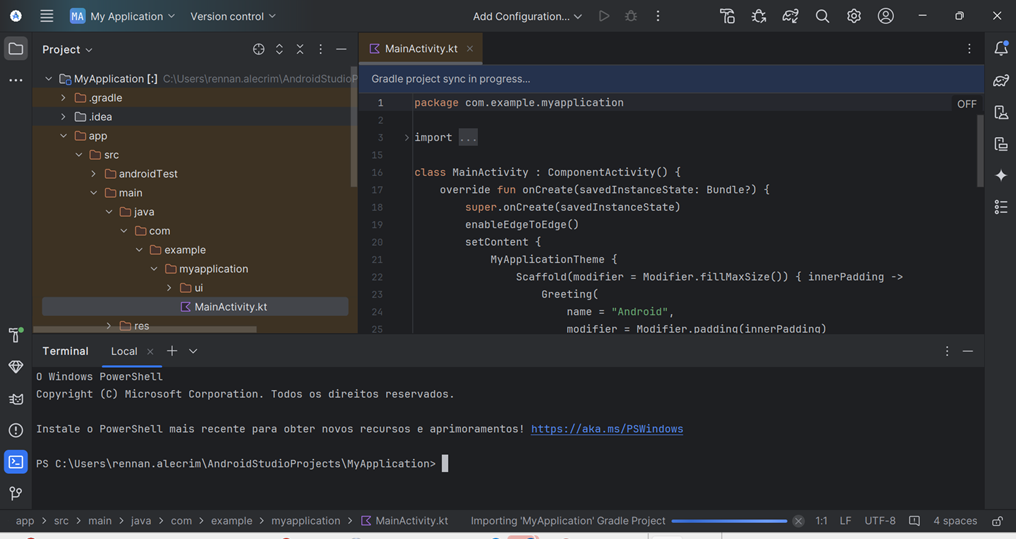
With the project open, access the **console window** (press **Alt + F12** to open it)
Console Window Open in an Example Android Project
{% endstep %}
{% step %}
### Connect the Device
The **mobile device** must be **connected to the computer**. This allows logs to be displayed **directly on the screen** or saved **to a file**
{% endstep %}
{% step %}
### Call 'adb' to Start your Log Process
Inside command line window referencing your project file folder,use the commands bellow:
```
adb logcat
```
this command will show the logs in your console window
```
adb logcat > logs.txt
```
this command will send all the logs to saved text file. It is very usefull if you need to send to support department or attach in opened a tickets
{% endstep %}
{% endstepper %}
After the developer runs the application and attempts to send a transaction, the environment being used can be identified by **checking the SDK’s request URL for each backend**.
The developer should look for the corresponding string:
* **`gwpay-hml.first-tech.net`** → **Staging Environment**
* **`gwpay-prod.first-tech.net`** → **Production Environment**
#### Example for Testing/Staging Environment
```
01-13 15:41:30.503 26564 3470 I okhttp.OkHttpClient: --> POST https://gwpay-hml.first-tech.net/v3/bff/pos/initialize
```
#### Example for Production/Release Environment
```
01-13 15:41:30.503 26564 3470 I okhttp.OkHttpClient: --> POST https://gwpay-prod.first-tech.net/v3/bff/pos/initialize
```
---
# Agent Instructions
This documentation is published with GitBook. GitBook is the documentation platform designed so that both humans and AI agents can read, navigate, and reason over technical content effectively. Learn more at gitbook.com.
## Querying This Documentation
If you need additional information that is not directly available in this page, you can query the documentation by asking a question.
Perform an HTTP GET request on the following URL with the `ask` and `goal` query parameters:
```
GET https://ftcoders.first-tech.com/first-tech-ttp-sdk/developer-zone/distinguishing-environments-staging-vs.-production.md?ask=&goal=
```
`ask` is the immediate question: it should be specific, self-contained, and written in natural language.
`goal` is what the user is ultimately trying to achieve, the reason they need the answer. Sharing it helps GitBook give you a better, more relevant answer. A goal is most helpful when it describes the outcome the user wants rather than restating the question. For example, with `ask=how do I create an API token`, a goal like `automate deployments from our CI pipeline` lets GitBook tailor the answer to that use case.
The response will contain a direct answer to the question and relevant excerpts and sources from the documentation.
Use this mechanism when the answer is not explicitly present in the current page, you need clarification or additional context, or you want to retrieve related documentation sections.